Adobe Audition Tips and Tricks

This string is for tips and tricks to make editing easier and faster. Here is my best tip to start it off:
When editing longer works do NOT use stretch and pitch to quicken playback speed because it is destructive, instead use the hotkeys built into audition. If you are slightly familiar then you know that space bar starts and stops playback, but so do J,K, and L. Start normal playback by pressing L, pressing it a second time increases playback speed, pressing again increases it further. Press K to stop, or J to slow it down to a crawl and even play it backwards.
To change the rate at which the changes in speed happen, go to Edit --> Preferences --> Playback --> JKL Shuttle speed. Coincidentally, the hotkey to bring up the preferences box is ctrl+shift+k and pressing Alt+K brings up the hot key menu.
Hope this helps speed up production!!
Until Next TIme,
Percy
Please sign in to leave a comment.
Thank you, Percy!
This sounds super interesting! I haven't used Audition that much and this is definitely helpful. Do you always use Audition?
I have an Adobe subscription so it makes sens for me. It has some shortfalls but it is a very powerful program overall.
New tip of the day: ctrl+b is little known and can be frustrating! Heavy editing may force an accidental action summoning the power of ctrl+b with all that copying and pasting. Don't worry!! If your screen goes grey and you can't hear sound but the work field still indicates movement just hit that combo again!! Problem solved.
Wow! This is fantastic! Keep them coming! I'm sure a lot of people are going to find them useful. You're AN ACE! :)
I always use Pro Tools because I bought it while coursing university and never came back. I definitely need to try Audition out as it's so popular amongst our Pros :)
Tip of the day: The heal brush is your friend. It looks like a band-aid and that is sort of what it is. Simply press 'b' to activate it and then you can change the brush size by pixel count. It works in conjunction with the spectral frequency display and can help you eliminate mouths pops and other small noises created during recorded in post production. If you have made a clean edit, this should be your next step. Listen at normal speed and utilize the spacebar to stop once you have identified and problem spot. Click and hold on the spot and like magic, the program gets rid of the noise and most often keeps the rest of the sound in tact. You will want to play with zoom and brush size to get good with it. DO NOT TRY TO LEAVE THE EDIT RUNNING AND BRUSH AT THE SAME TIME. Pause, brush, unpause. It will jump to where the needle was on the track at time of pause.
Until next time,
Happy Editing.
Tip of the Day: If you are working in Audition and suddenly, after making an edit, you can no longer hear your audio and the audio levels are no longer bouncing along as they should be while your file is playing, don't fret. More often than not you don't need to do anything special to correct this problem. Simply select another file to work on by double clicking it in your file window or opening a new one then simply switch back to what you had already been working on. Problem solved.
Make your own shortcut keys (hotkeys)!!
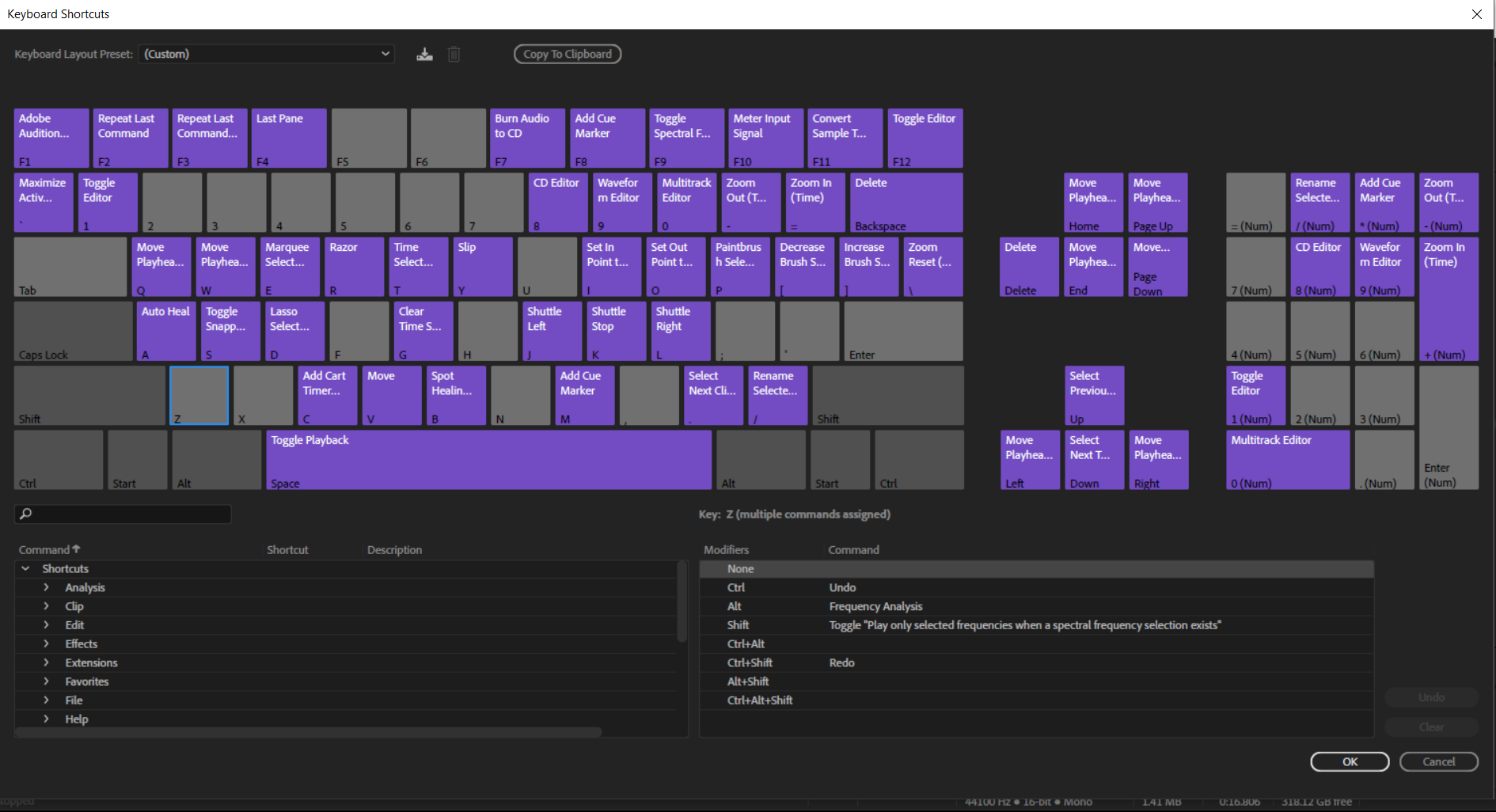
Press Alt+K to bring up the shortcuts. Any key can be an individual key or a combo key just like Alt+k is. When you press that combo you will see a graphical user interface of a keyboard layout. Clicking any key on that 'GUI' will show you what key strokes are attached to it in the bottom right. Below I have selected the 'z' key. If I want to add a combo key of say shift+alt+z I would simply leave z highlighted and drag my desired action from the lists in the lower left box to the lower right box beside what reads 'alt+shift'. That's it.
If you look carefully it can be noted that I have added some hotkeys. I turned the letter 'a' into what would normally only be accessible under the 'favorite' menu. Moving the mouse and clicking that and then clicking 'auto heal' is simply not fast enough. Now I can highlight something in the spectral display and hit 'a' and poof "auto healed".
Today's tip: Scrolling while editing.
Audition scrolls in the waveform editor in two ways. The first is screen to screen and the second is centered auto scrolling.
Firstly, auto scroll is the only way to go and should be on already upon first load of the program. You are going to want to get proficient with BOTH scrolling methods. Use centered auto scrolling when doing your first edit at high speed so if you did a retake and want to cut something it is usually still on your screen. When you go back to get rid of extraneous noises, use screen to screen otherwise you won't be able to see the bits you need to work on in the spectral display.
To switch back and forth press ctrl+shift+k to bring of the preferences menu (or click edit->preferences). Find 'playback' somewhere near the bottom and click or unclick 'centered auto scrolling' to turn it off and back on. Remember, you could always make that a hot key!!
Until next time,
happy editing.
Hi Percy, I am subscribed for Audition and the audio file isn't playing. It was jerky and slow and then it wouldn't play at all. I tried playing with Master Clock, it worked last night but not anymore. Help, please.